Saving to Resources
If you wish to reuse all the materials you've created for the course, use the Save Course to Resources option. To save an entire course's materials to your Resources:
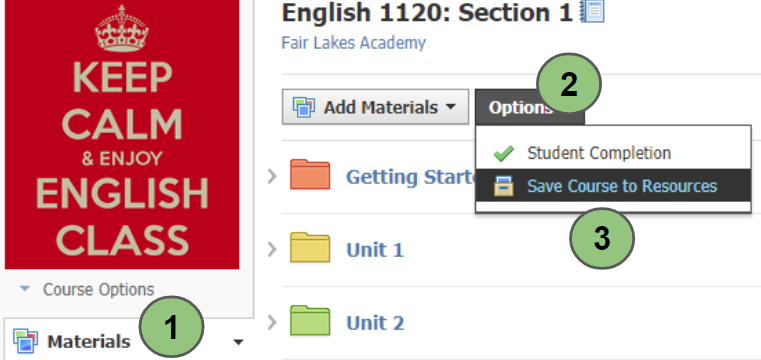
- Navigate to the Materials page of the course you'd like to save to Resources.
- Click Options at the top.
- Select Save Course to Resources from the drop-down menu.
- Select the Resource Collection in which you'd like to house your course content. If you haven't created a collection, you can add the course to your Home collection.
- Optional: Select a folder within the collection to which you'd like to save your course material.
- The Save as field indicates that your course materials will be saved in a new folder within the selected destination in your Resources. Within that folder, the materials remain organized in the same structure that was used in the course.
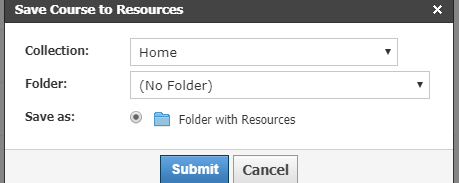
- Click Submit to complete.
See Schoology's Personal Resources documentation for full details on Resources.