How do I fix the name shown on my course, without changing it for every section?
Question
I tried to fix the name on my course, but my edit either didn't stick or changed the name for everyone else teaching the same course. What happened?
Answer
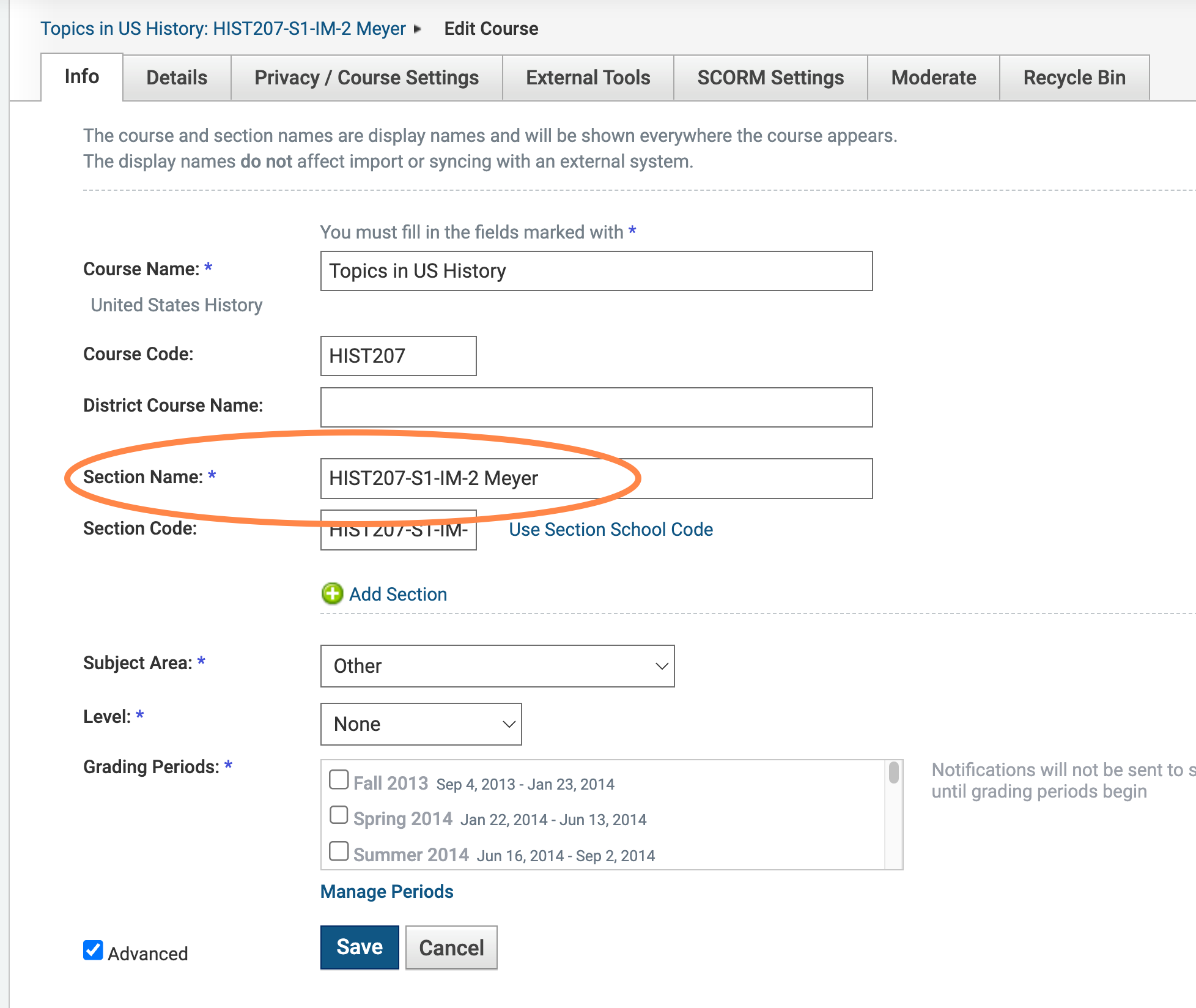
Schoology courses have two separate name fields, and it's easy to edit the wrong one:
- Course Name — the big title (e.g. "Topics in US History"). This is shared across every section of that course, including sections taught by other teachers. Editing it changes the name everywhere the course appears for everyone.
- Section Name — the smaller label under the course title (e.g. "HIST207-S1-IM-2 Meyer"). This is specific to your section only and is where your name, period, or other section-specific identifiers belong.
If you add your name or initials to the Course Name field instead of the Section Name field, it will show up correctly for you — but it also renames the course for every other teacher's section, and someone else's manual correction (or the next sync) can just as easily overwrite your edit back to whatever the shared Course Name was.
To fix a section-specific name:
- Go to My Courses and open the course, then click Edit Course.
- On the Info tab, leave Course Name alone — only touch it if you mean to rename the course for every section.
- Edit the Section Name field for your own section instead.
- Click Save.
If the Course Name itself is wrong (not just your section), or you're not sure which one to change, email registrar@universityprep.org or June rather than guessing — a Course Name edit affects everyone teaching that course.