Adding Resources to a Course
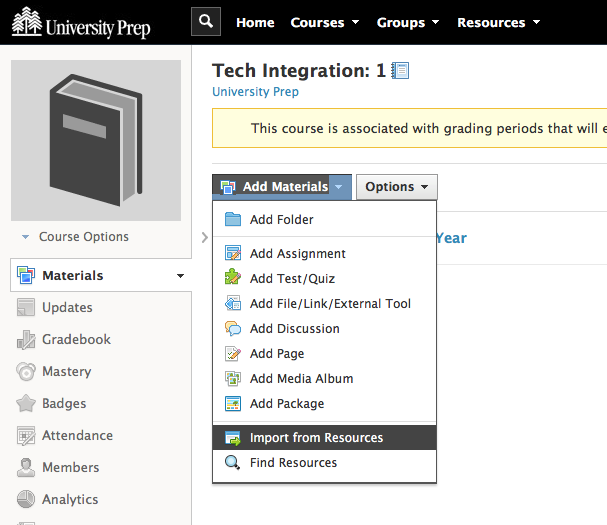
When a new term or year starts, you'll have an empty course in which to work. You can import your past class materials as one package from Resources. If you have not saved your courses to Resources, you can always access past archived courses. Please see the "Accessing Archived Courses" page for more information about archives.
Once you import resources into the course, make all future edits in the course itself. Changes made in Resources do not automatically "push through" to courses.
See Schoology's Personal Resources documentation for full details on Resources.
Import from Resources:
A Strong Recommendation:
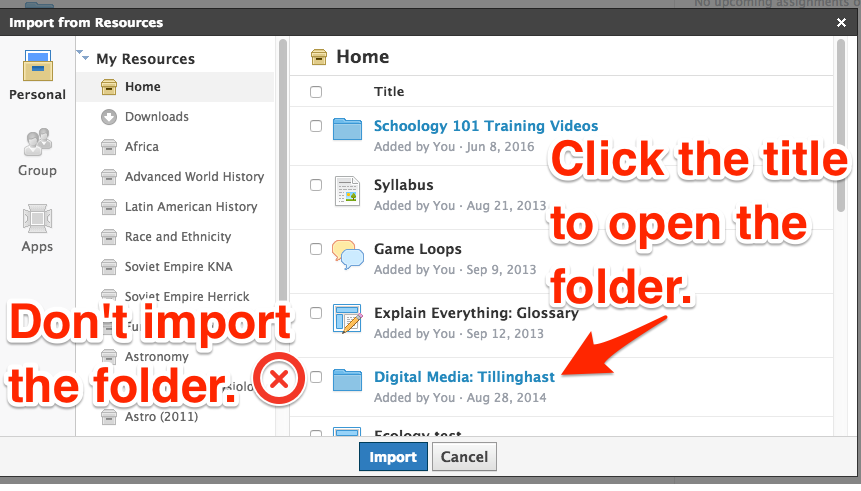
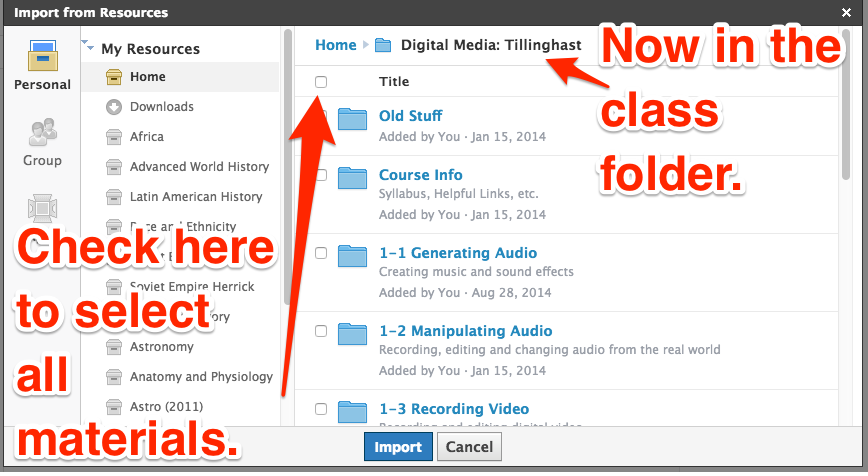
When you import resources, you will see a folder with the title of your course. In my example below, the folder is titled "Digital Media: Tillinghast." I recommend that you do not check the box for that folder and hit import. Doing so will in essence import one too many layers of folder into your new course and introduce extra clicks for you and your students to navigate. Rather, I recommend that you click the title of the folder, which will then open the folder and allow you to select all of the materials. Your new course will now fill out and appear just as did your old course.
Copying an Individual Item from Another Course
The steps above cover importing from your own saved Resources. There's a separate way to reuse material: copying an individual item directly out of another course.
If you find a resource in a course you have admin access to that you'd like to reuse, you don't need to go through Resources at all. Use the gear icon next to that item and choose Copy to Course, then select your destination course. You'll need to be a Course Admin on both the source and destination course — see How To Become Course Admin in the FAQ if you need access.